Go beyond basic formatting with styles, tables, page layout, and document structure.
This guide assumes you are comfortable with the basics covered in the Word Basics post. These features will save you time and make your documents more consistent.
A note on versions: Microsoft updates these apps constantly, and the exact wording, button placement and menu options can differ between versions, update channels and license types (perpetual vs Microsoft 365). If something on your screen does not match exactly what you see here, the feature is almost always still there, just in a slightly different spot or under a slightly different name. Use these guides as a map, not a pixel-perfect match.
Styles
Styles are saved sets of formatting. Instead of manually setting the font, size, and spacing for every heading in a document, you apply a style and it handles all of that at once. Change the style later and every heading updates automatically.
The Styles group is on the Home tab. See using styles in Word.
Built-in styles you will use most:
- Normal - standard body text
- Heading 1 - main section titles
- Heading 2 - subsections under a Heading 1
- Title - the document title at the top
Click anywhere in a paragraph and then click a style to apply it.
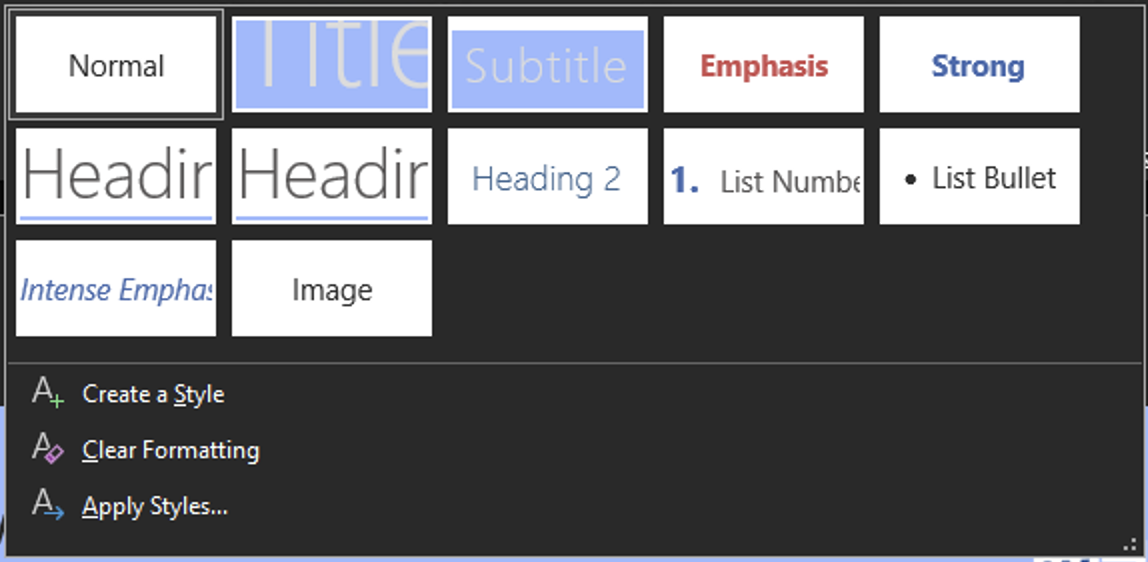
To modify a style, right-click it in the Styles group and choose Modify. Any changes apply instantly to every paragraph using that style.
Navigation Pane: If you use heading styles, you can open the Navigation Pane (View, Navigation Pane) and jump between sections by clicking headings in the panel. Useful for long documents.
Tables
Tables organize data into rows and columns.
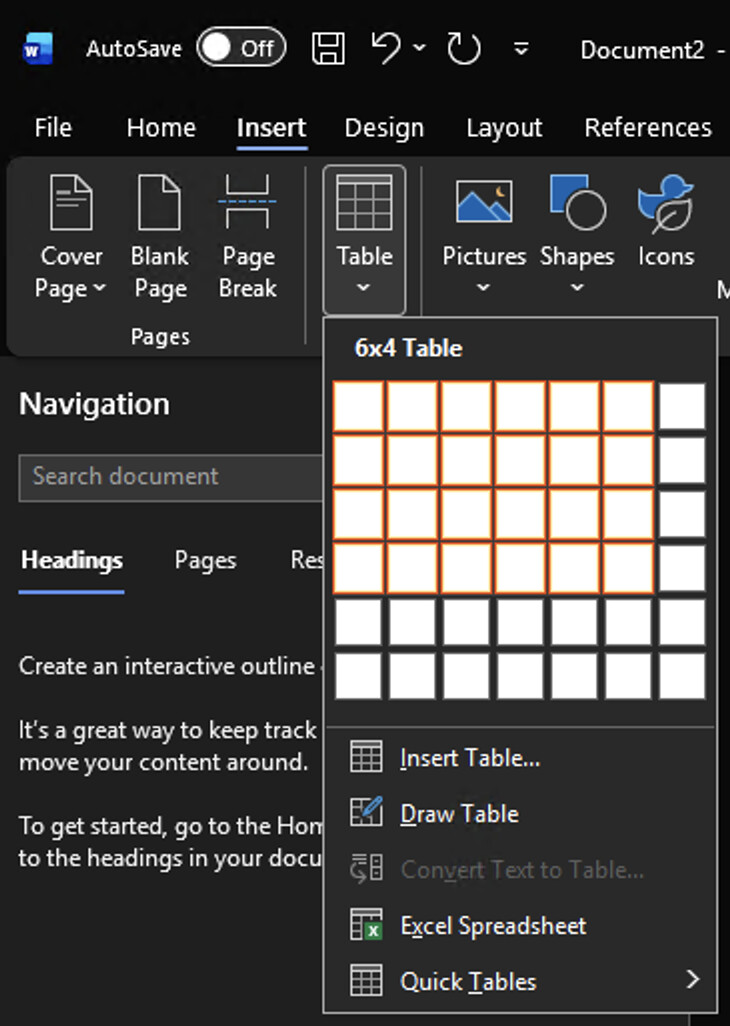
Insert a table: Go to Insert, then Table, and drag over the grid to pick rows and columns. Or click Insert Table to type in exact numbers.
Moving around: Tab moves to the next cell. Shift+Tab moves back. Pressing Tab in the last cell adds a new row.
Resizing columns: Hover over a column border until the cursor changes to a resize arrow, then drag.
Adding and removing rows or columns: Right-click any cell. The menu includes options to insert or delete rows and columns.
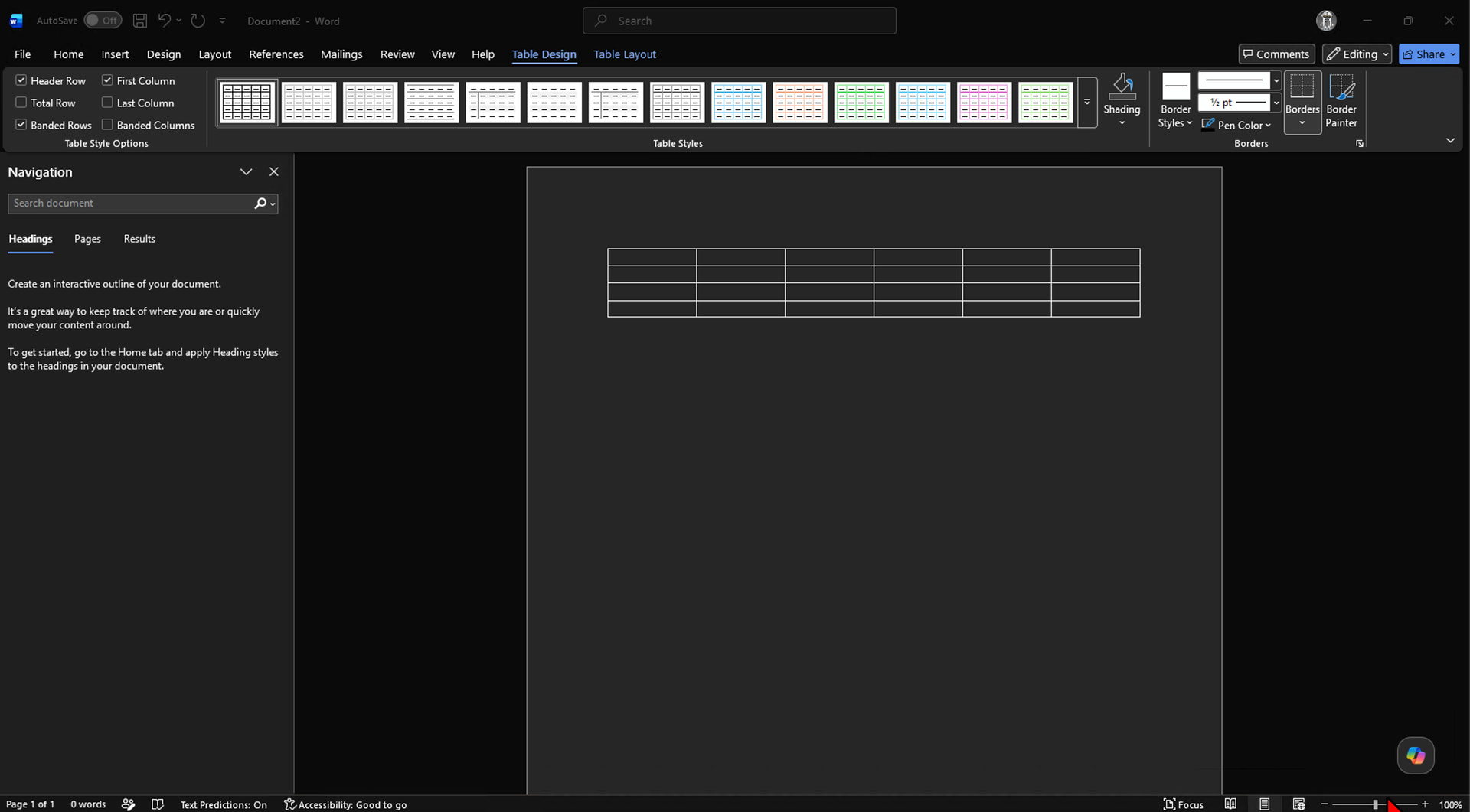
Table Design and Layout tabs: These appear in the ribbon whenever your cursor is inside a table. Table Design has style presets and border controls. Layout has options for merging cells, splitting cells, and setting exact column widths.
Find and Replace
Ctrl+H opens Find and Replace.
- Type what you want to find in the top field
- Type the replacement in the bottom field
- Replace changes the next match and stops
- Replace All changes every match in the document at once
Useful for fixing a repeated typo, changing a name throughout a long document, or removing repeated extra spaces.
Page Layout
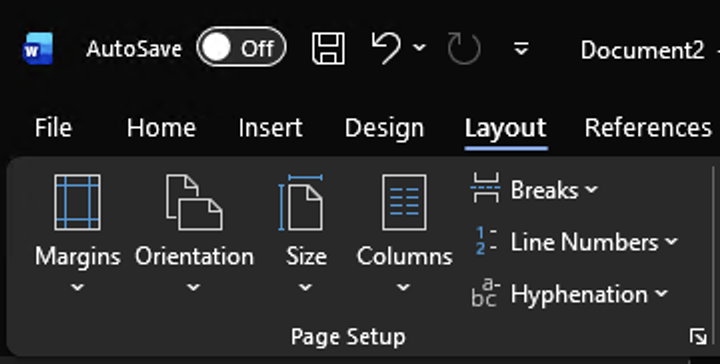
The Layout tab controls the physical setup of your pages.
Margins: Layout, Margins. Normal (1 inch on all sides) works for most documents. Narrow gives you more usable space. Custom lets you set exact values.
Page Orientation: Layout, Orientation. Portrait gives you a tall page. The horizontal option gives you a wide page, useful for tables and charts that need more room across.
Page Size: Layout, Size. Letter (8.5 x 11 inches) is standard in the US. A4 is standard in most other countries.
Headers and Footers
Headers appear at the top of every page. Footers appear at the bottom. Common uses are page numbers, document titles, and dates.
Insert a header: Insert, Header. Choose a built-in style or Blank.
Insert a footer: Insert, Footer. Same options.
Page numbers: Insert, Page Number. Pick top of page or bottom of page and choose an alignment style.
While editing a header or footer, the main document body is grayed out. Double-click the main body to exit, or click Close Header and Footer in the ribbon.
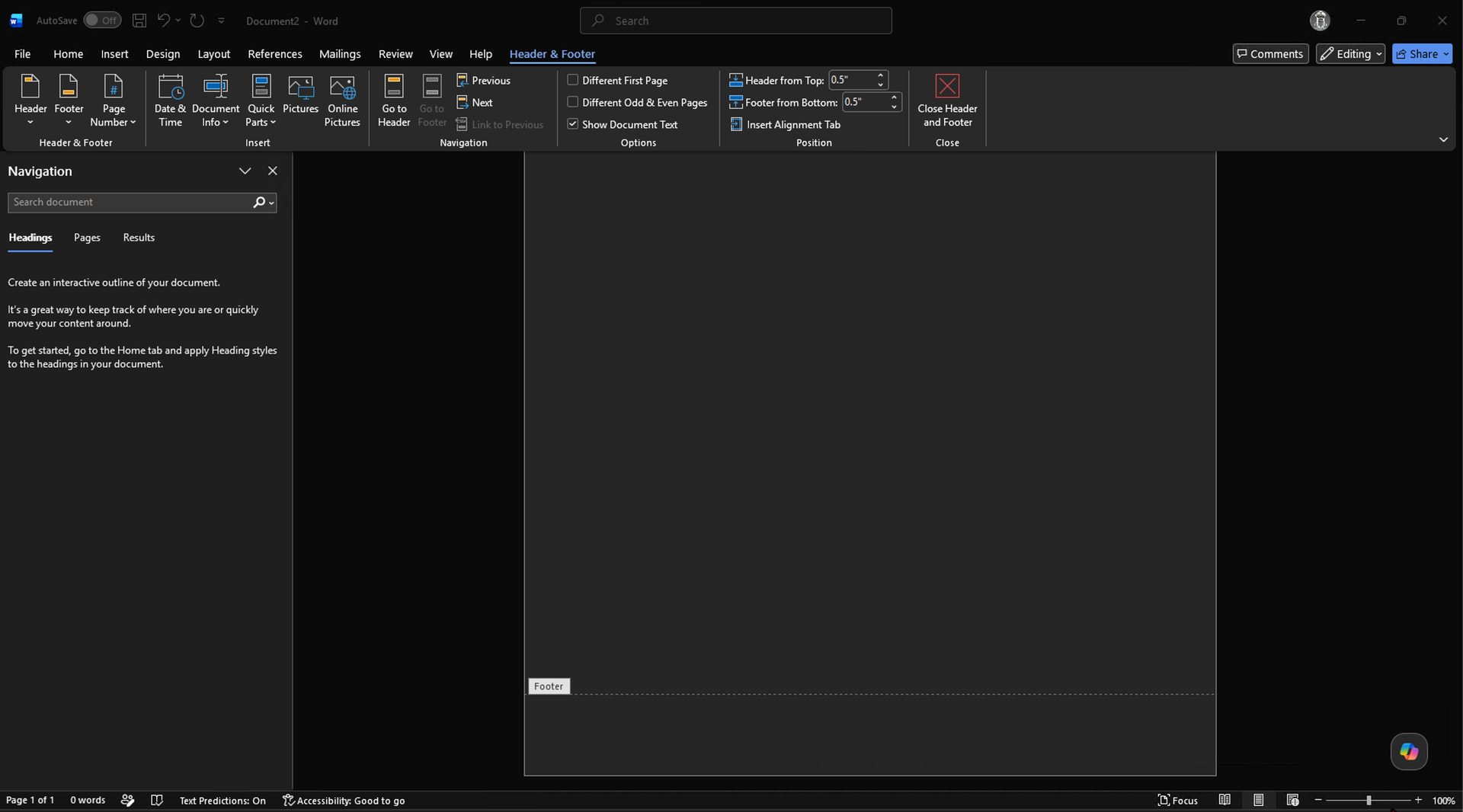
Table of Contents
If you used heading styles, Word can generate a table of contents automatically.
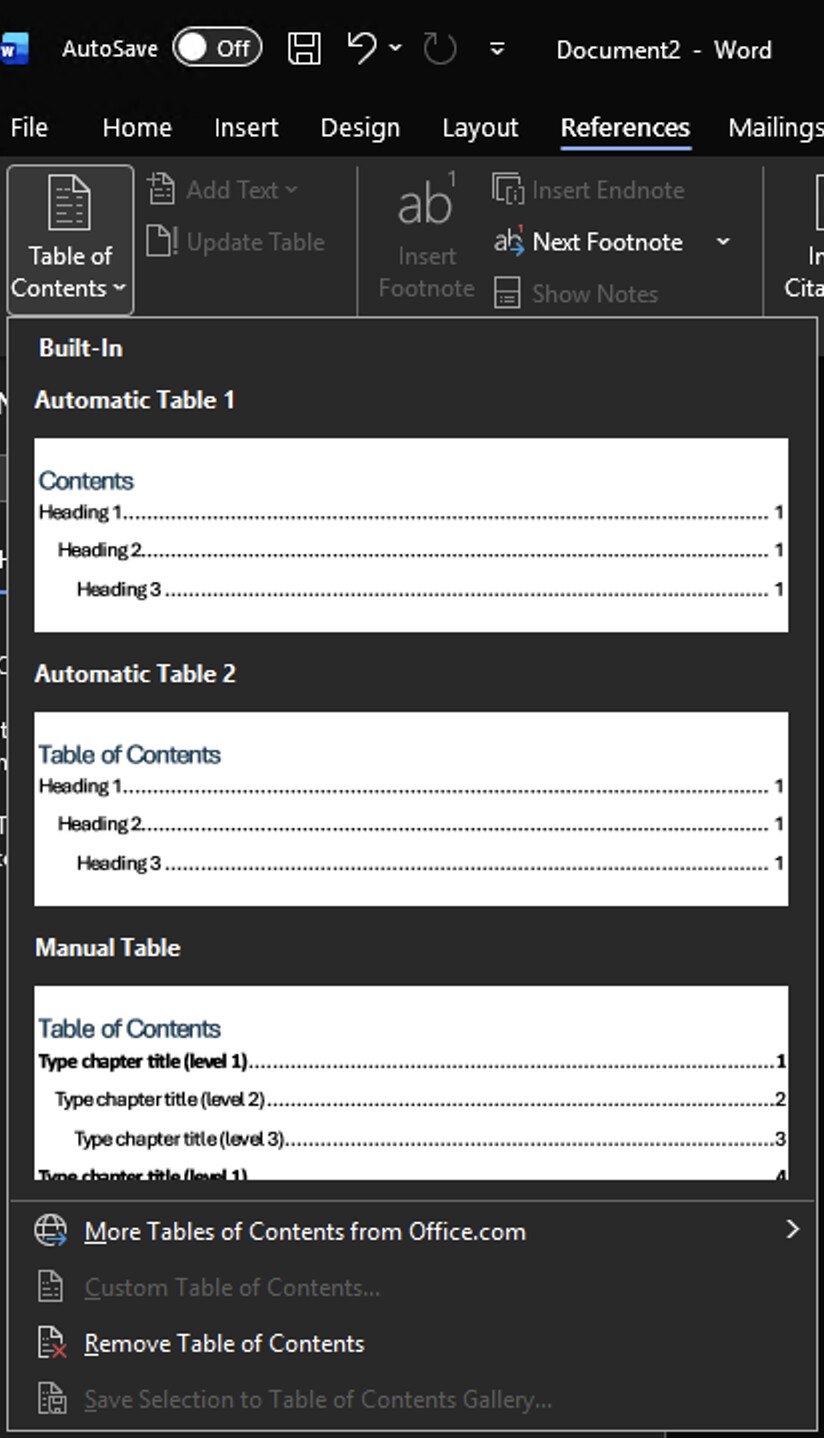
Go to References, then Table of Contents, and choose a style from the list. Word inserts the TOC at the cursor position using your headings.
After you make changes to the document, click inside the TOC and click Update Table to refresh the page numbers and headings.
Links
What would you like covered next? Leave a suggestion below.
New to this topic? Start with: Microsoft Word Basics: Creating, Formatting, and Saving Documents