Everything you need to write your first document and make it look the way you want.
If Word feels like it has too many buttons, this guide covers the ones you will actually use day to day. By the end you will know how to create a document, format text, and save your work correctly.
A note on versions: Microsoft updates these apps constantly, and the exact wording, button placement and menu options can differ between versions, update channels and license types (perpetual vs Microsoft 365). If something on your screen does not match exactly what you see here, the feature is almost always still there, just in a slightly different spot or under a slightly different name. Use these guides as a map, not a pixel-perfect match.
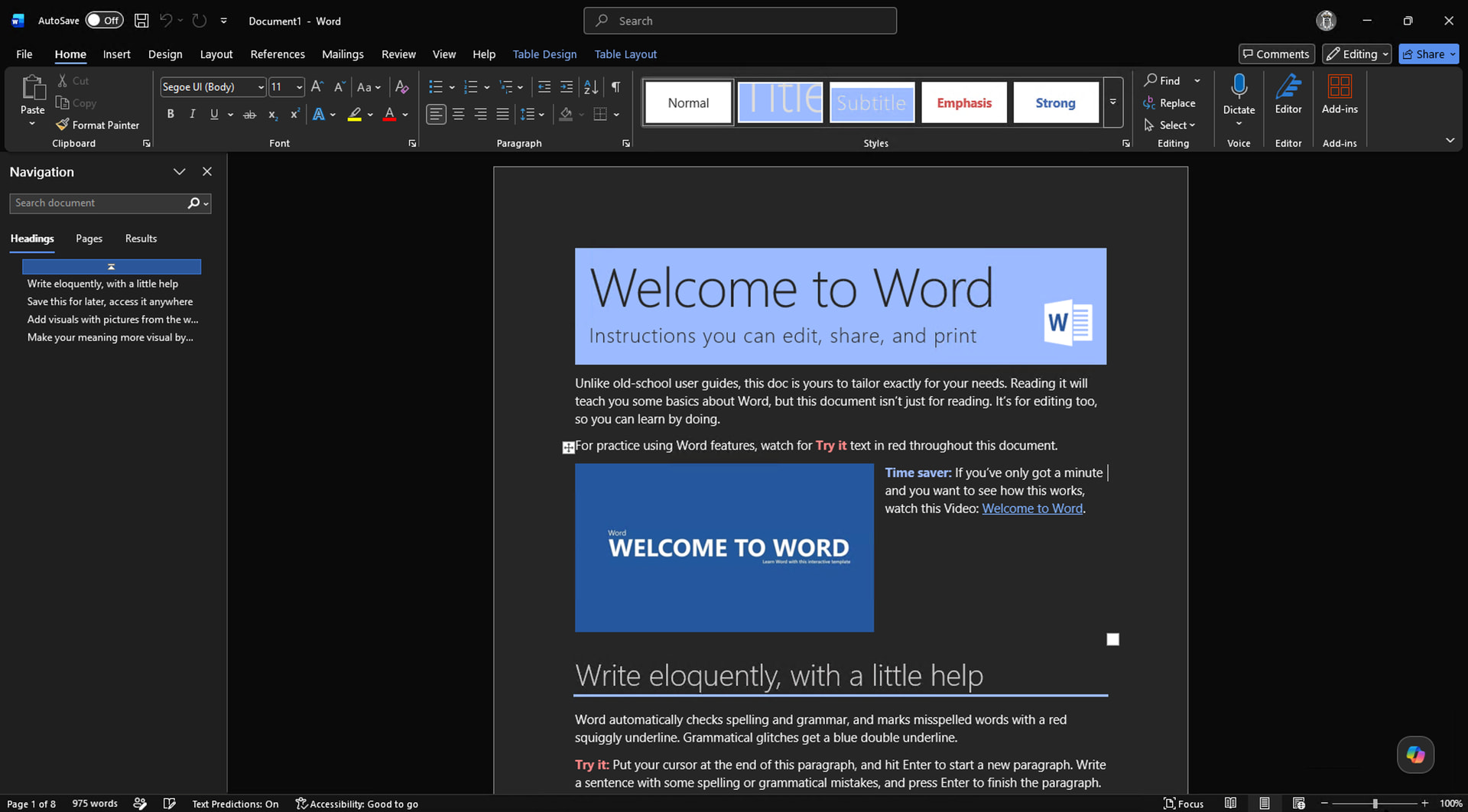
The Interface
When Word opens, three areas matter most:
- The ribbon at the top, which holds all the tools organized into tabs
- The document canvas in the middle, where you type
- The status bar at the bottom, showing page number and word count
The Home tab is where you will spend most of your time.
Creating a Document
Click Blank document on the start screen, or go to File, then New, then Blank document if Word is already open. Start typing.
Selecting Text
Click and drag to select text. Double-click selects a word. Triple-click selects a whole paragraph. Ctrl+A selects everything.
Once text is selected, any formatting you apply only affects that selection.
Basic Text Formatting
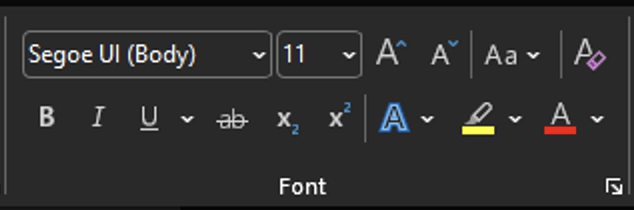
All of these are on the Home tab in the Font group.
Bold, Italic, Underline: Click B, I, or U, or use Ctrl+B, Ctrl+I, Ctrl+U.
Font and Size: The font name dropdown and the number box let you change the typeface and size. Click the dropdown and pick from the list or type a name directly.
Font Color: The A with a colored bar underneath. Click the arrow next to it to pick a color.
Paragraph Alignment
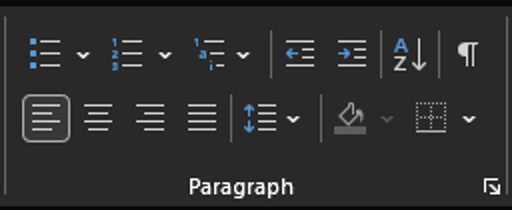
With your cursor anywhere in a paragraph, use the alignment buttons in the Paragraph group on the Home tab:
- Left (default for most text)
- Center (headings, titles)
- Right
- Justify (stretches lines to fill both margins, common in books and reports)
Line Spacing
Click the line spacing button in the Paragraph group. It looks like horizontal lines with up and down arrows. Common options are 1.0, 1.15, 1.5, and 2.0. Pick Line Spacing Options at the bottom for exact control.
Undo and Redo
Ctrl+Z undoes the last action. Ctrl+Y redoes it. You can keep pressing Ctrl+Z to go back multiple steps.
Saving
Ctrl+S saves. If the document is new, it opens a Save As prompt. See save options explained.
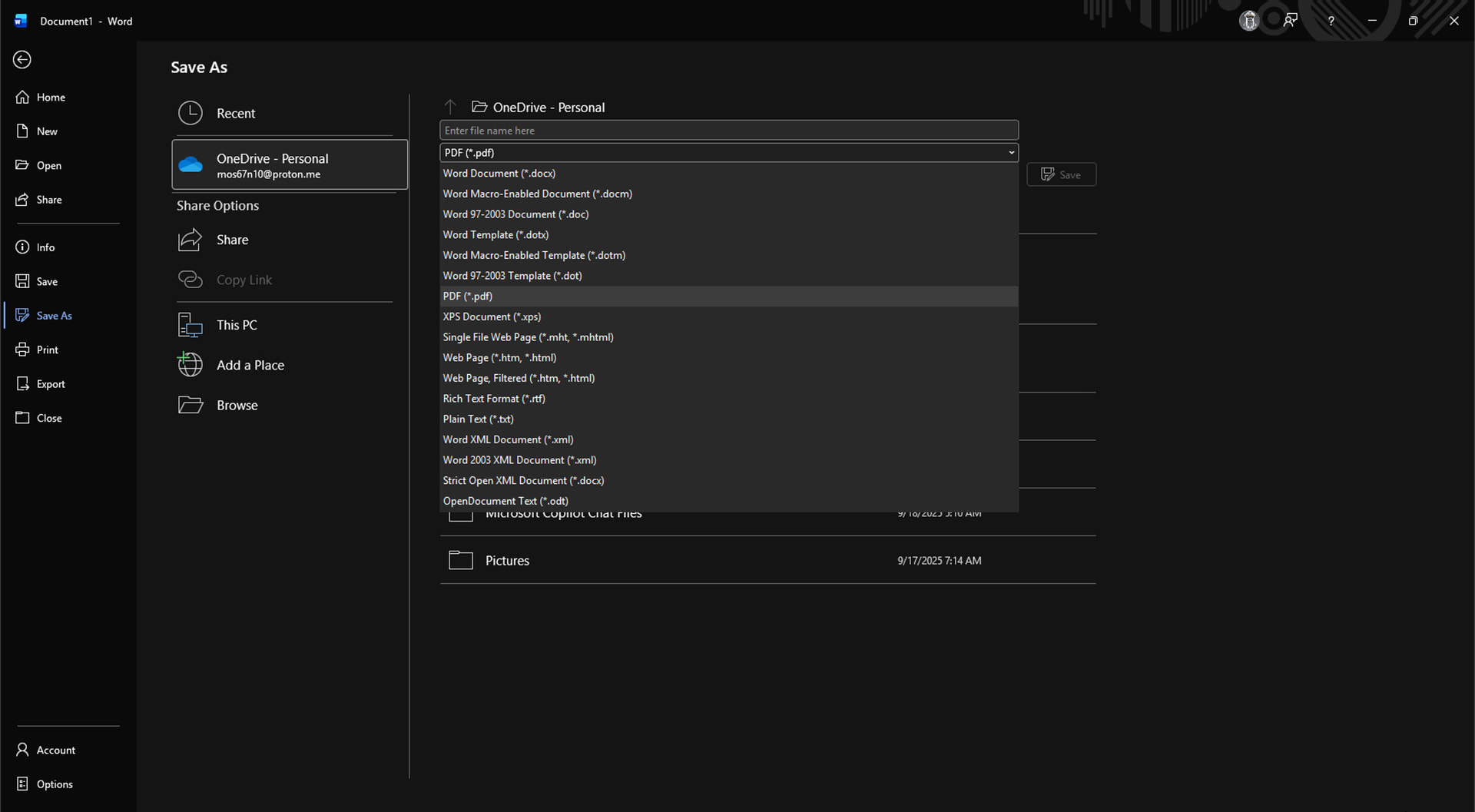
Save As (F12 or File, Save As): Choose where to save and what to name the file. The default format is .docx, which works in any modern version of Word.
To share a file that anyone can open without Word, go to File, Save As, change the format to PDF, and save. See Save or convert to PDF.
Printing
File, Print (or Ctrl+P). The right side shows a preview. Set your printer, page range, and number of copies on the left, then click Print.
Keyboard Shortcuts
| Action | Shortcut |
|---|---|
| Save | Ctrl+S |
| Undo | Ctrl+Z |
| Redo | Ctrl+Y |
| Bold | Ctrl+B |
| Italic | Ctrl+I |
| Underline | Ctrl+U |
| Select All | Ctrl+A |
| Copy | Ctrl+C |
| Cut | Ctrl+X |
| Paste | Ctrl+V |
| Find | Ctrl+F |
| Ctrl+P |
Links
Found a faster way to do any of this? Drop it in the replies, I’d like to know.
Ready to go further? Microsoft Word Intermediate: Styles, Tables, and Page Layout