

An alternative to CoPilot for Visual Studio 2022. Takes about 10 minutes to set up.
If you’re not a fan of CoPilot but still want some AI in your editor while you’re working in Visual Studio 2022, Claude Code is worth a look. I got it running in my lab environment last week and figured I’d write up the steps, since a few of them aren’t obvious the first time through. The PATH variable bit at the end trips people up the most.
Subscription required (updated May 20, 2026): Claude Code requires a Claude Pro ($20/month) or Max subscription to connect. The free tier cannot authenticate. A community member flagged this after the guide was first published, and I missed it because I already had a Pro account. Thanks to @PPrososki for catching it.
Check your organization’s AI policy first. If you are on a corporate or client network, confirm that Claude is on the approved tools list before installing. Many organizations restrict which AI services can be used on their systems.
What You’ll End Up With
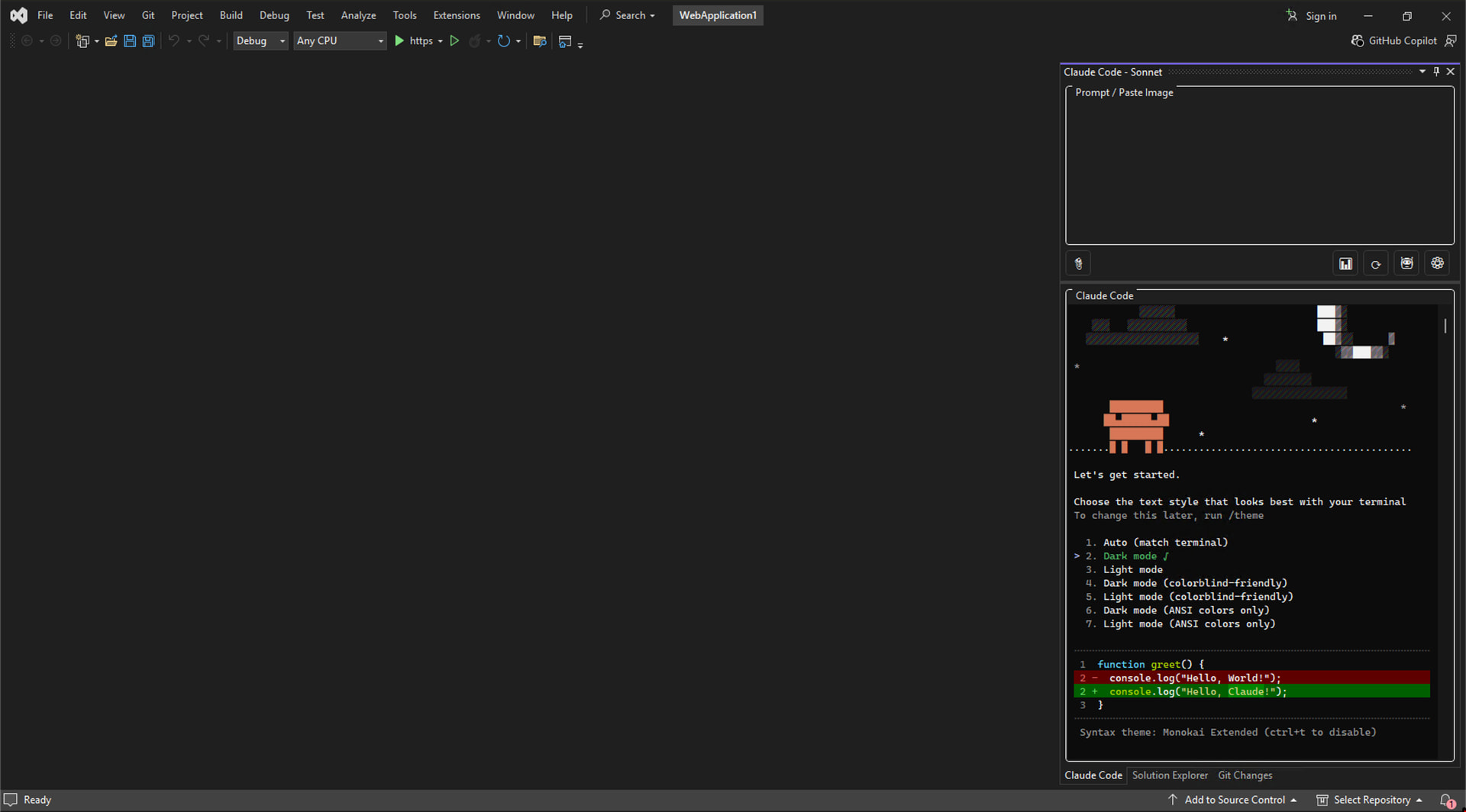
Claude Code running inside Visual Studio 2022, with a chat panel docked in your IDE that can read your code, make changes across files, and actually run tasks for you instead of just autocompleting.
Two pieces are involved
-
The Visual Studio extension (the UI panel inside VS)
-
The Claude Code CLI (the engine that does the actual work, installed via PowerShell)
You need both. The extension won’t do anything useful without the CLI installed and reachable from your PATH.
Requirements
| Your Machine | Accounts |
|---|---|
| Windows 11 | Anthropic account with Pro or Max subscription |
| Visual Studio 2022 (Enterprise, Professional, or Community) | Admin rights to edit environment variables |
| PowerShell 5.1 or newer | Internet access for the installer |
| Git for Windows (requires admin to install) |
Step 1: Install the Visual Studio Extension
-
Open Visual Studio 2022.
-
Go to Extensions, then Manage Extensions.
-
Search for Claude.
-
Install Claude Code Extension for Visual Studio.
-
Close Visual Studio once the install completes. The extension actually finishes installing on shutdown, so this part matters.

Step 2: Install Claude Code via PowerShell
Git for Windows required (updated June 17, 2026): The Claude Code installer depends on the bash shell that ships with Git for Windows. If Git is not installed, the installer fails immediately. Install Git for Windows first. Note that Git for Windows requires administrative privileges to install. Thanks to @PPrososki for flagging this. See his full report below.
-
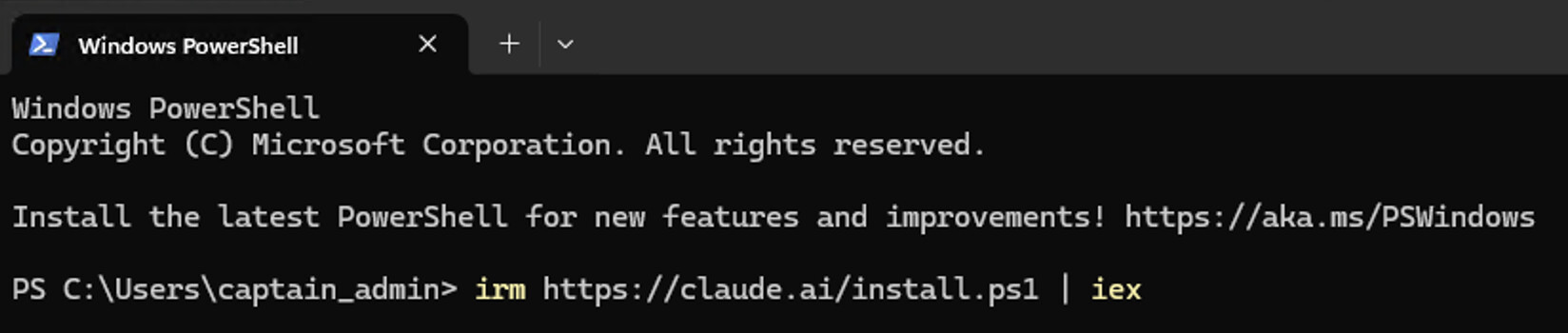
Open PowerShell.
-
Run this command:
irm https://claude.ai/install.ps1 | iex
- When the installer finishes, it prints a folder path and tells you to add it to your environment variables. Copy that path somewhere you can grab it in a second.
Step 3: Add Claude Code to Your PATH
-
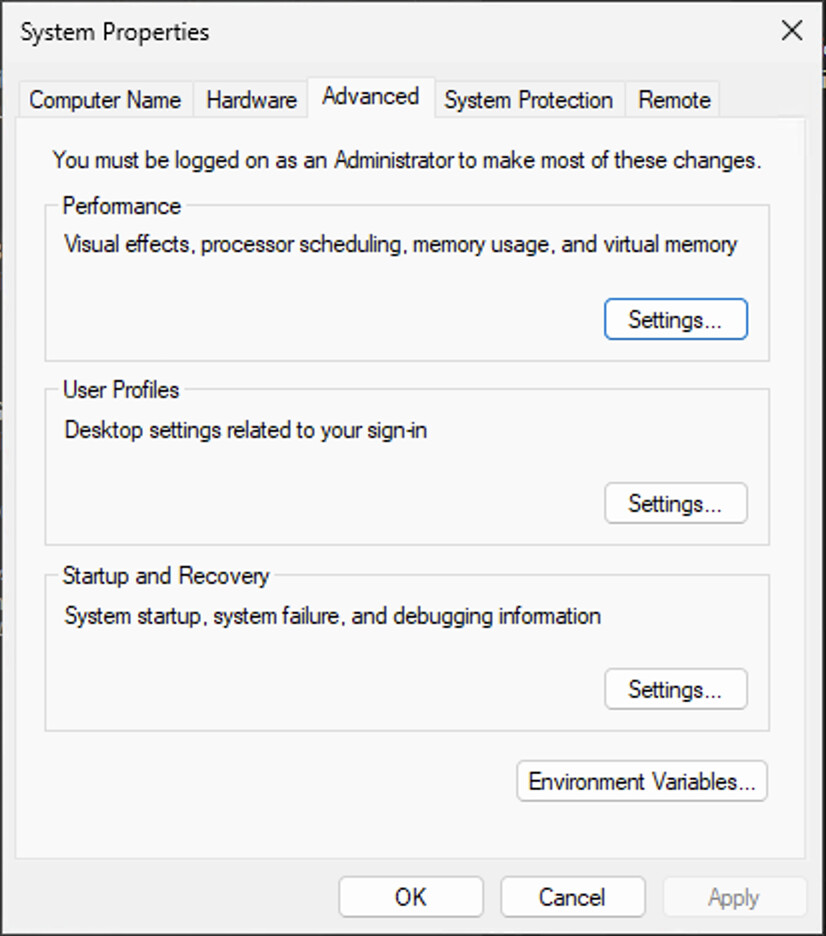
Press Win + R, type
System Properties, and hit Enter. -
Click Environment Variables at the bottom of the window.
-
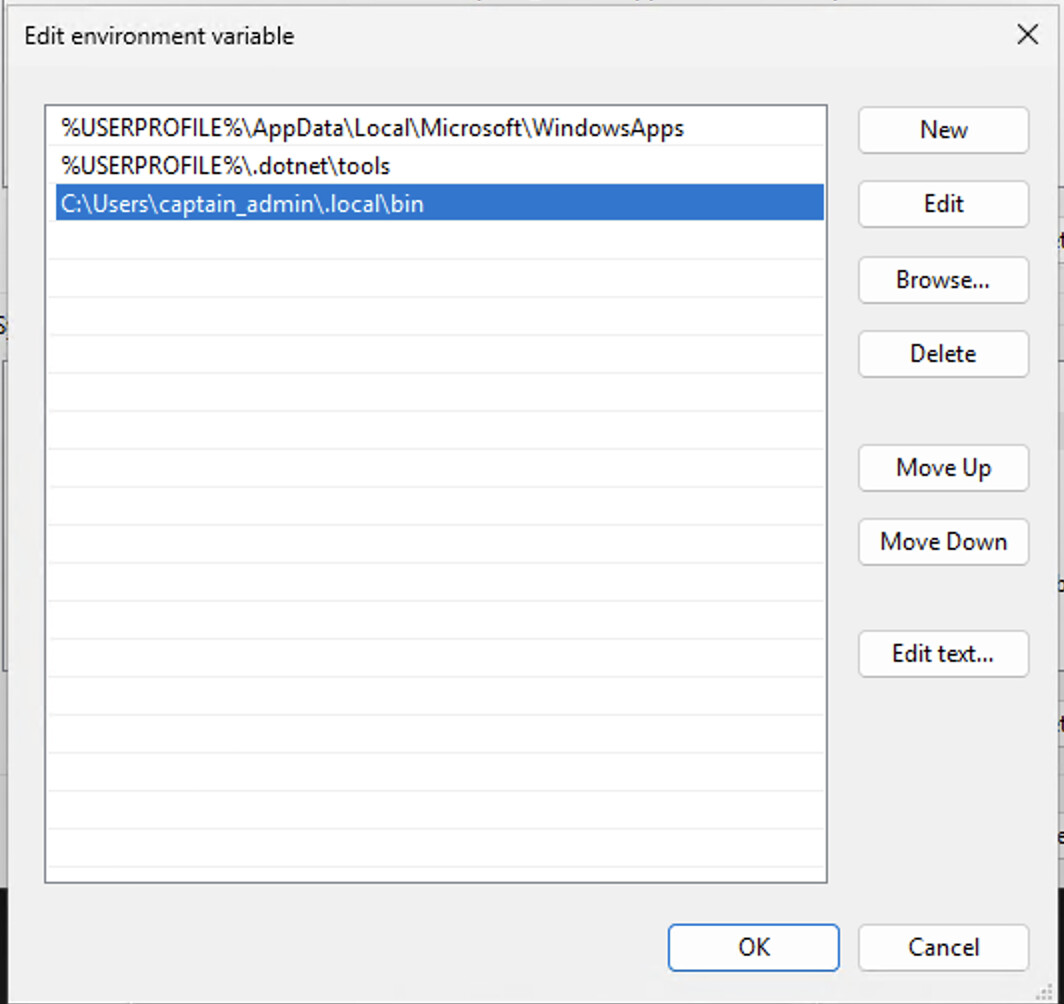
In the top section (User variables), select Path and click Edit.
-
Click New.
-
Paste the path from Step 2.
-
Click OK on all three dialogs to save and close.
Step 4: Verify Everything Works
-
Open Visual Studio 2022 and follow any first run prompts the extension shows you.
-
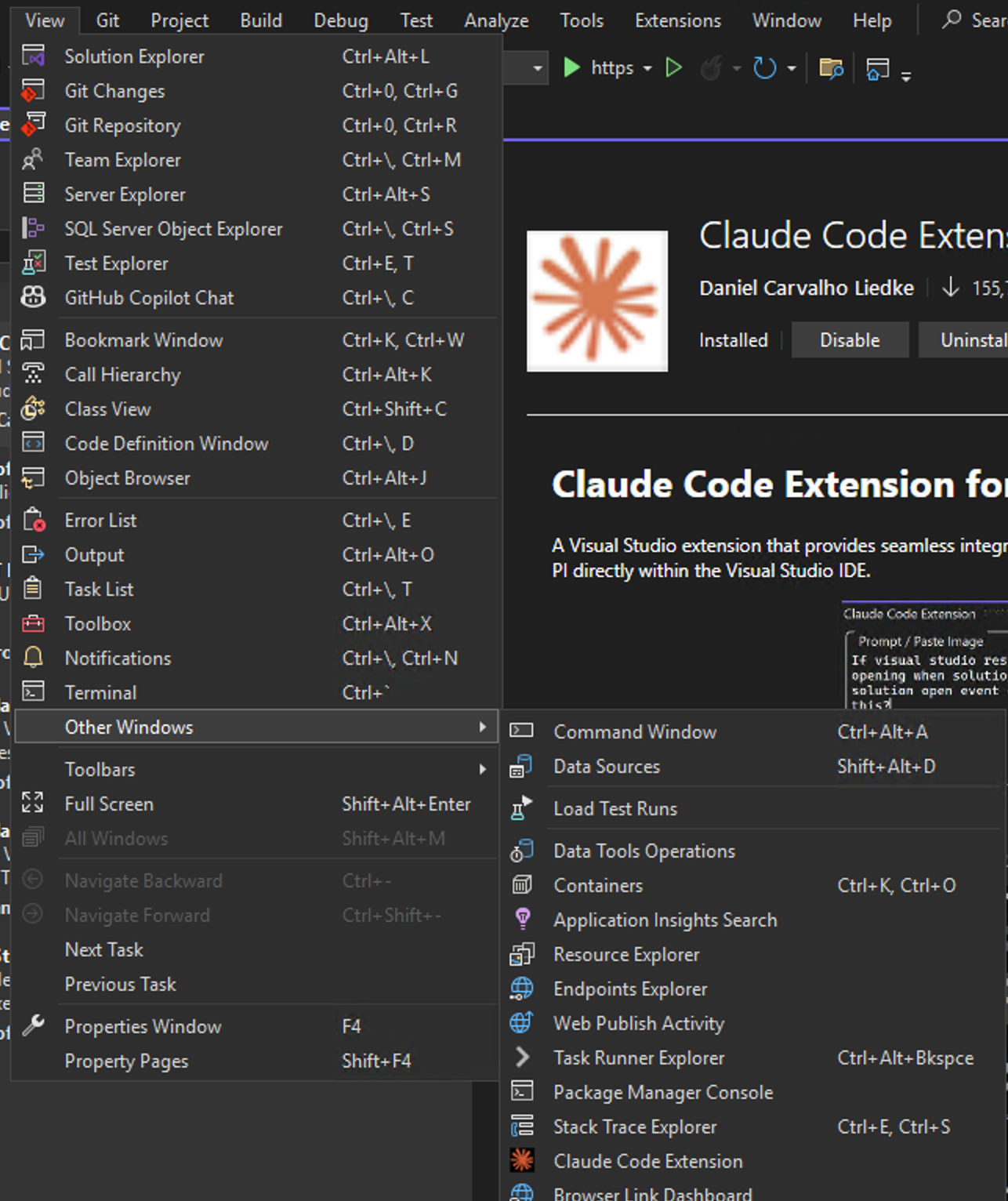
If the Claude panel doesn’t appear on its own, go to View, then Other Windows, then Claude.
-
Sign in when prompted and you should be good to go.
Troubleshooting
-
Extension isn’t in View, Other Windows. Make sure Visual Studio was fully closed after the extension install. Sometimes VS needs a clean restart before the new window registers itself.
-
“claude command not found” errors in the extension. Your PATH entry didn’t take. Open a fresh PowerShell window and try
claude --version. If that fails, redo Step 3 and double check you pasted the exact path the installer gave you. -
PowerShell blocks the install script. Run PowerShell as Administrator, or allow the script for one session with
Set-ExecutionPolicy -Scope Process -ExecutionPolicy Bypassbefore running the install command.
Links
Hope this saves someone an hour of fiddling. Drop any questions or weird issues you ran into in the replies.
// comments